Trio Remote Control
Remote Control Overview
Trio accepts remote commands from LoopFollow via direct APNS. The final control of whether remote commands will be enacted rests with the Trio user — they can enable or disable remote control.
Nightscout Careportal Remote Commands Removed
As of LoopFollow 6.2, Nightscout remote commands are no longer supported in LoopFollow. Use Trio Remote Control (TRC) below.
Nightscout version must be 15.0.2 or newer
To properly display the OpenAPS pill with Trio, your Nightscout version must be 15.0.2 (or newer). If you do not see the expected treatments or pills in the Nightscout dashboard, follow the steps to Configure Nightscout for Trio (OpenAPS).
Real-time Notifications for Trio
Starting with LoopFollow v4.0 and Trio v0.6, users of remote control are provided with real-time notifications for the results of remote commands. This requires a paired change to both Trio and LoopFollow.
- This change enables Trio to send a push notification back to the LoopFollow app on the originating phone, immediately informing the user whether their command (e.g., meal, bolus, override) was successfully processed or if an error occurred
- This greatly improves the user experience compared to waiting for Nightscout being updated
Quick Access
The bullets below take you to the indicated topics. The configuration steps are listed first but only need to be done once:
- Configure Trio Phone for Remote Control
- Configure LoopFollow for Remote Control
- Use LoopFollow Trio Remote Control
- Troubleshooting
Use LoopFollow Trio Remote Control
Important
The ability for the Trio app to be remotely controlled will be disabled when Enable Remote Control is turned OFF on the Trio phone, even if you have LoopFollow configured with the correct credentials. This is for the protection of the Trio user, so that they always are the primary controller of their insulin dosing app.
The APNS commands will report success on the LoopFollow app, but you will see a gray dot on the plot. The message is "Remote command received, but remote control is disabled in settings. Ignoring the command."
Once the LoopFollow app is configured, and while the Trio phone is handy, test sending Remote Commands. It is good to also have a browser open with the Nightscout URL displayed.
Remember to give the system time to update.
The sequence is LoopFollow to Apple Push Notifications to Trio, which uploads to Nightscout and then is displayed in the LoopFollow main screen.
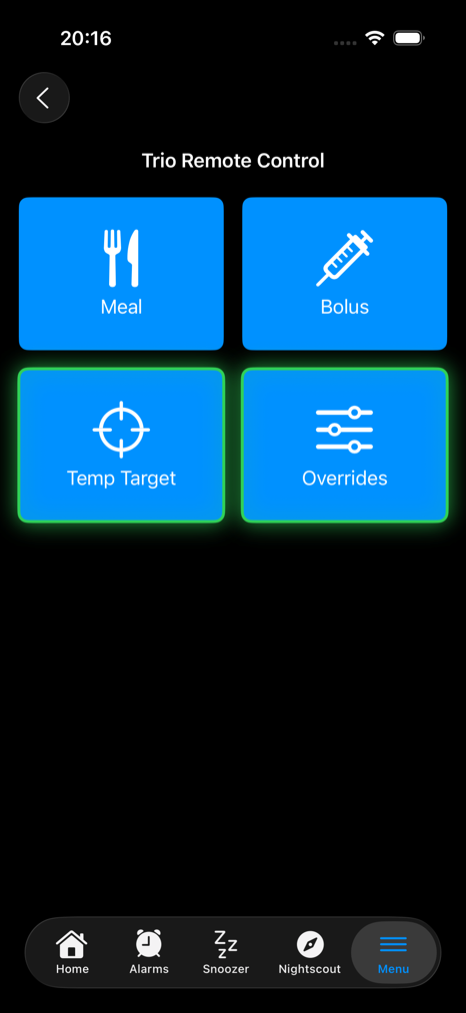
While an override or temp target is active, its button is outlined with a green glow — in the screenshot above, both are active.
Remote Sequence Steps
Wait for the Result
The remote control sequence requires several steps:
- LoopFollow device to Apple Push Notifications
- LoopFollow provides an immediate success or failure message
- Apple Push Notifications to Trio phone where the message could be:
- handled promptly
- discarded, ignored by Apple or the phone
- significantly slowed down due to network connectivity
- The Trio app processes the remote command and either enacts it or rejects it
- With Trio v0.6 or newer and LoopFollow v4.0 or newer, the Trio app returns a message to the originating LoopFollow phone via APNS indicating the result of the remote command
- This response can be much faster, and more definitive, than waiting for the Nightscout site and then the LoopFollow plot to update
- The Trio app uploads to Nightscout with result shown on LoopFollow main screen in a few minutes
- If the remote request was enacted, the result is visible on the LoopFollow main plot
- If the remote request was rejected, a gray dot is visible on the LoopFollow main plot - touch it to see the reason why the request was rejected
If no result shows up at LoopFollow (no gray dot, no response to remote request), then it is most likely step 2 that failed. We have limited control over that.
Remote Meal
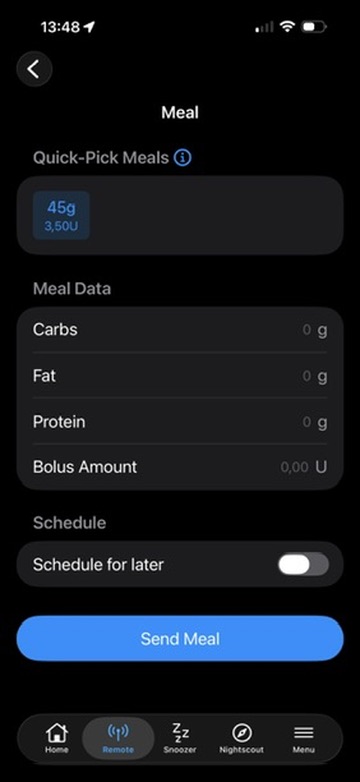
The Meal screen sends a remote meal entry to Trio:
- Carbs — up to the Max Carbs guardrail set in Remote Settings.
- Fat and Protein — shown when Meal with Fat/Protein is enabled in Meal Settings, each with its own guardrail.
- Bolus Amount — shown when Meal with Bolus is enabled, capped by the Max Bolus guardrail.
- Schedule for later — enter the carbs at a chosen time instead of now.
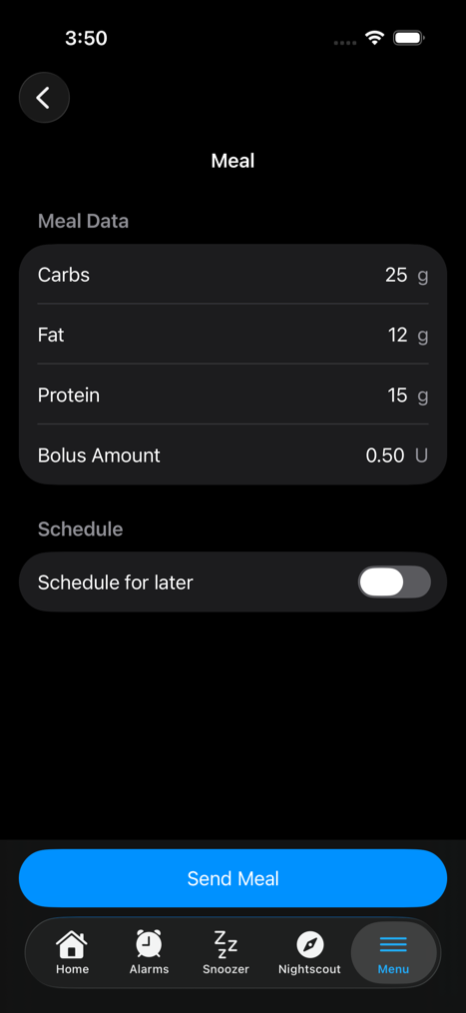
Tapping Send Meal shows a confirmation that summarizes the whole entry. If a bolus is included, you must also authenticate with Face ID or your passcode before the command is sent.
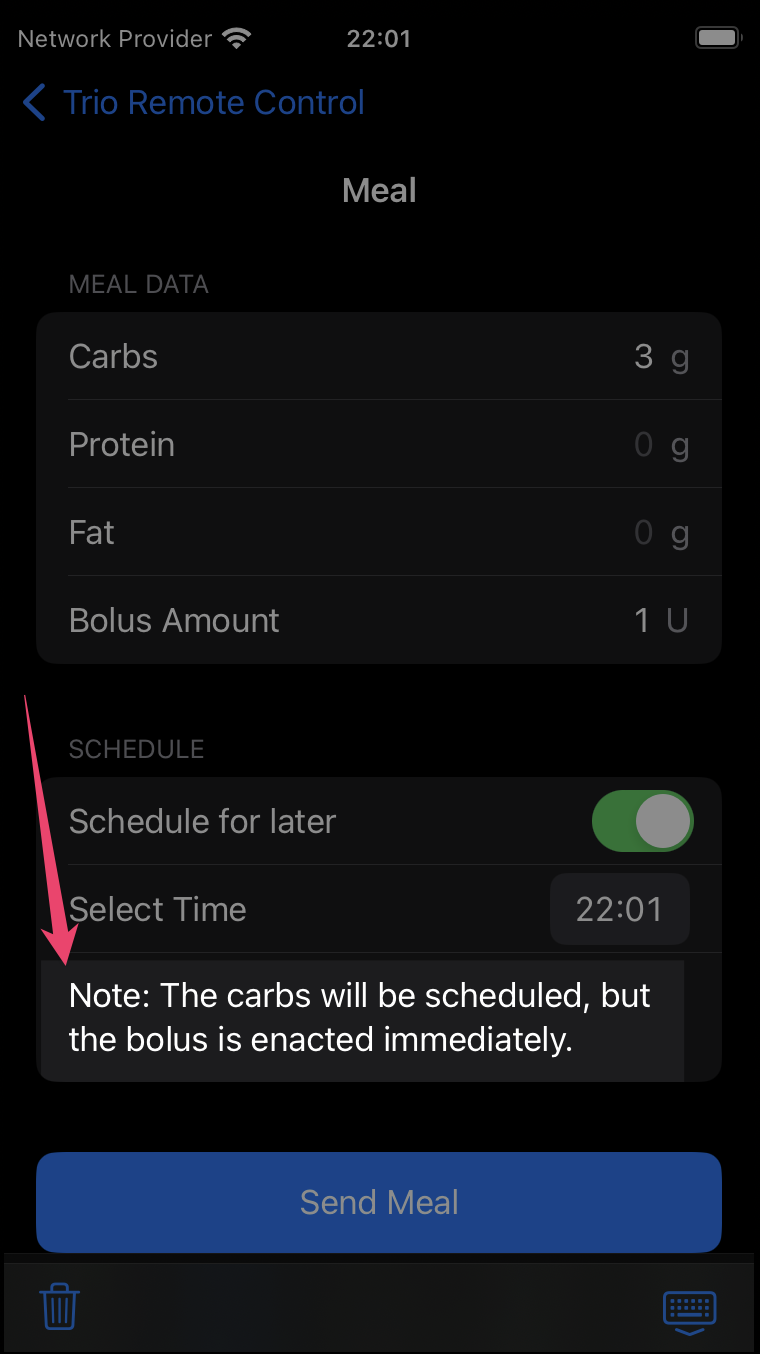
When entering meals and choosing to schedule the meal, any bolus included in the meal is enacted immediately. Only the carb entry is entered according to the schedule.
Remote Bolus
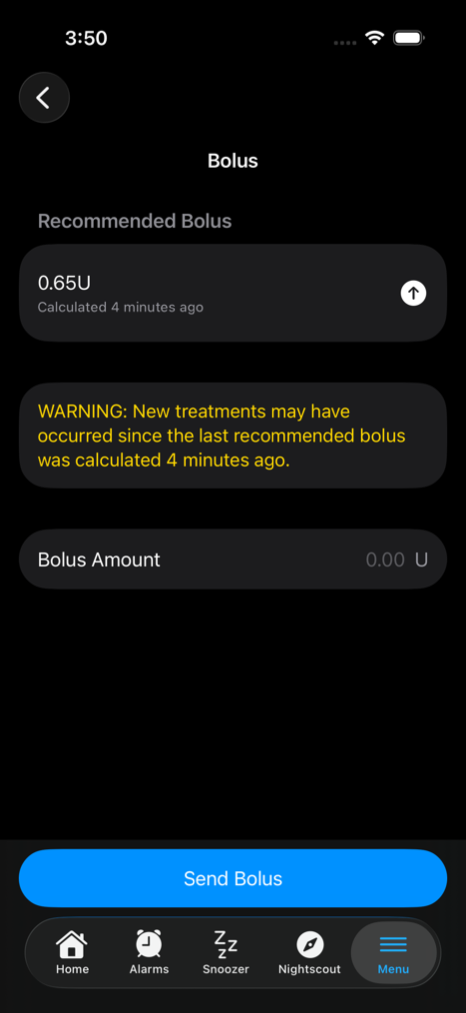
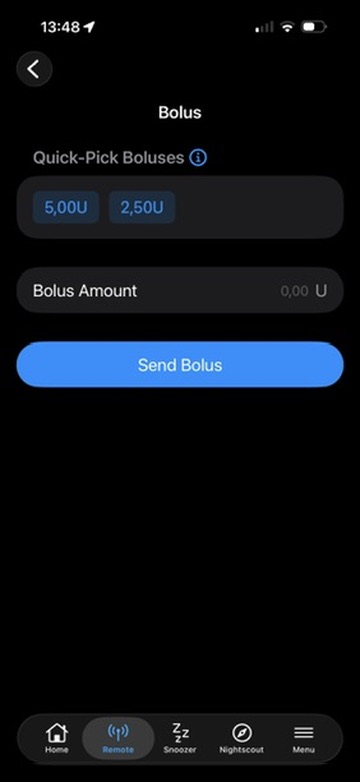
The Bolus screen sends a remote bolus to Trio:
- Recommended Bolus — when Trio's latest recommendation is less than 12 minutes old, it is shown at the top; tap the arrow to fill it into the amount field. A warning reminds you that new treatments may have occurred since it was calculated.
- Bolus Amount — capped by the Max Bolus guardrail. The amount is rounded down to the pump's bolus increment, which is detected automatically from Nightscout; a manual Bolus Increment setting appears in Remote Settings only when it cannot be detected.
After the confirmation, you must authenticate with Face ID or your passcode before the bolus command is sent.
Quick-Pick Boluses and Meals
Available in LoopFollow 6.2 and newer
To save a step when sending a remote command, LoopFollow shows Quick-Pick buttons at the top of the Bolus and Meal screens. Each button fills in the amounts from one of your recent entries with a single tap.
- Quick-Pick Boluses appear on the Bolus screen and fill in an insulin amount.
- Quick-Pick Meals appear on the Meal screen and fill in carbs, and — when enabled in Meal Settings — fat, protein, and the meal bolus.
| Quick-Pick Boluses | Quick-Pick Meals |
|---|---|
 |
 |
| {align="center"} |
Tapping a button only fills in the fields — nothing is sent until you review the values and tap Send Bolus / Send Meal, exactly as with a manual entry. Guardrails still apply.
How the suggestions are chosen
Every bolus or meal you successfully send is stored locally on your phone. When you open a remote screen, that history is scored to surface the most relevant options for the current moment, considering:
- Time of day — entries sent around this time of day score higher
- Day of week — weekday and weekend patterns are kept separate
- Recency — older entries gradually fade out
Up to five buttons are shown, and the Quick-Pick section is hidden entirely until you have history to draw from. So if you usually send the same breakfast on weekday mornings, that entry tends to appear as an option on weekday mornings.
A bolus that was part of a meal is stored with that meal, so it does not appear among your standalone Quick-Pick Boluses.
Note
The history is private to the device and stored in LoopFollow only. Nightscout cannot tell remote entries apart from manual ones, so it is not used as a source — a freshly installed or reset phone starts with no Quick-Pick suggestions until you send a few commands.
Tap the info icon next to Quick-Pick Boluses or Quick-Pick Meals in the app for a short in-screen explanation.
Temp Target
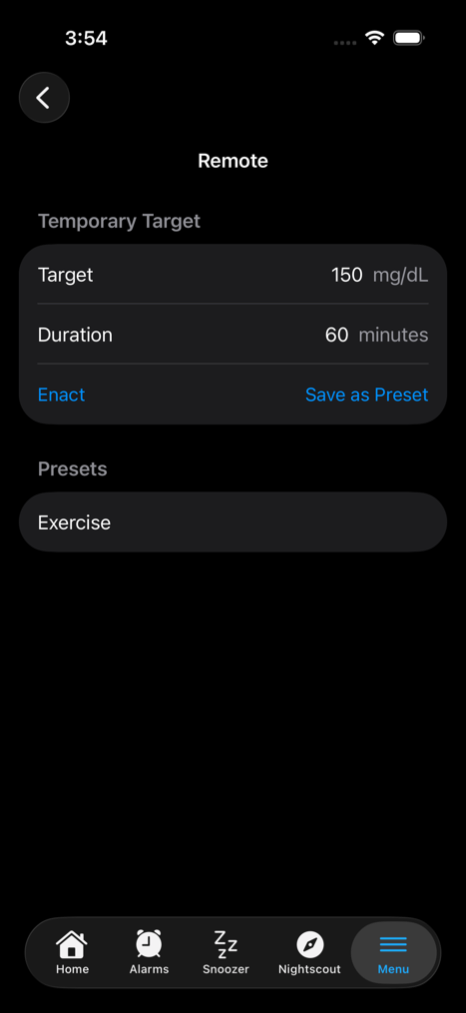
The Temp Target screen enacts or cancels a temporary glucose target on Trio:
- Target — between 80 and 200 mg/dL, shown in your glucose unit.
- Duration — at least 5 minutes.
- Enact — shows a confirmation with the target and duration before sending.
- Save as Preset — stores the current values under a name of your choice. Presets are listed below the entry card; tap one to enact it, swipe left to delete it.
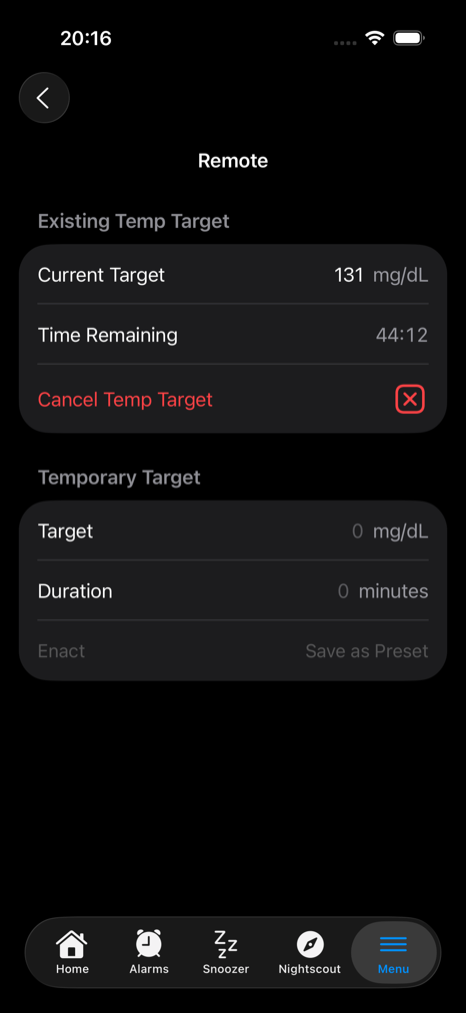
When a temp target is already running, the screen shows it with its remaining time and a Cancel Temp Target button. The remaining time is a live countdown when 2 hours or less remain; otherwise it is shown as a duration, such as 5h 30m. A temp target set for a week or longer is treated as indefinite and shows no remaining time.
Overrides
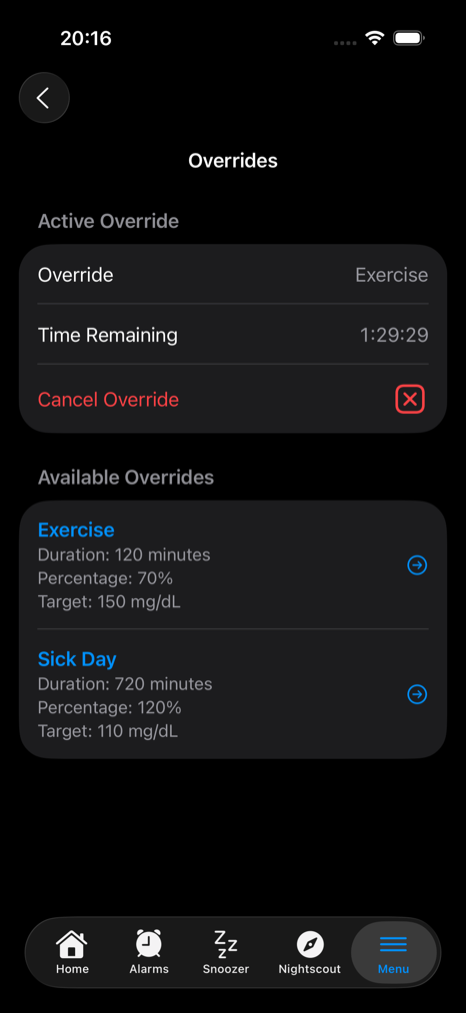
The override presets listed on this screen are defined in Trio — LoopFollow reads them (name, duration, percentage, and target) from the profile that Trio uploads to Nightscout. New presets cannot be created from LoopFollow.
Tap a preset to activate it; a confirmation is shown before the command is sent. While an override is active, it is listed with its remaining time and a button to cancel it. The remaining time is a live countdown when 2 hours or less remain; otherwise it is shown as a duration, such as 5h 30m. An override set for a week or longer is treated as indefinite and shows no remaining time.
Configure Trio Phone for Remote Control
Default: OFF
Remote control must be enabled on the Trio phone or no remote information is accepted by the Trio phone.
You can search for this screen in Trio settings or go through the sequence: Trio, Settings, Features, Remote Control.
When you select Trio Remote Control as the Remote Type in the LoopFollow app, you must fill in the following under LoopFollow Settings, APN and LoopFollow Settings, Remote Control.
-
Settings: APN
-
Settings: Remote Control
Shared Secret
Once Remote Control is enabled, a Shared Secret is available. This is only used if you want to use Trio Remote Control with LoopFollow.
The graphic below is on the Trio phone:
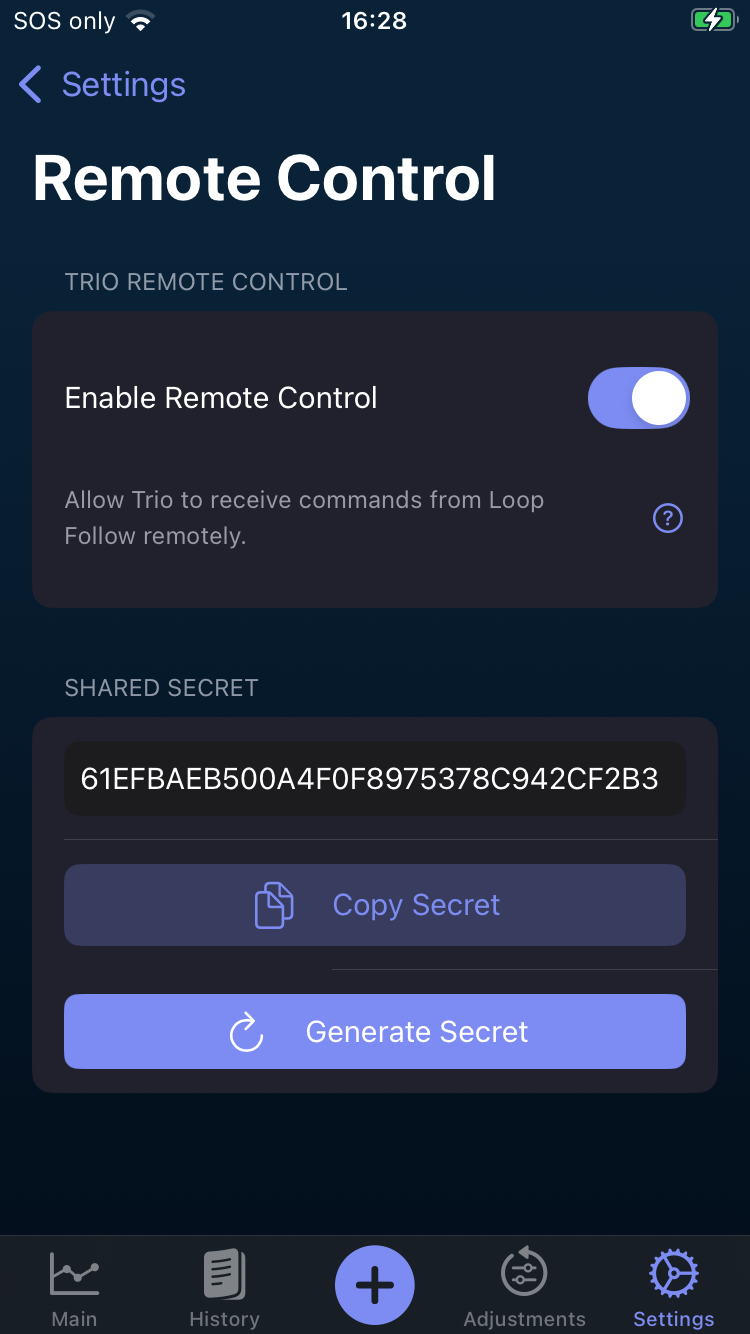
When Remote Control is enabled on the Trio app and the LoopFollow app is properly configured, you can add carbs, send boluses, set or cancel overrides or temporary targets from the LoopFollow app to the Trio phone via Apple push notifications.
The SHARED SECRET should be copied from the Trio phone and added to the Shared Secret row of the LoopFollow Remote Settings screen as part of the configuration for using LoopFollow.
Important
The ability for the Trio app to be remotely controlled will be disabled when Enable Remote Control is turned OFF on the Trio phone, even if you have LoopFollow configured with the correct shared secret or your Nightscout URL has Careportal access. This is for the protection of the Trio user, so that they always are the primary controller of their insulin dosing app.
Configure LoopFollow for Remote Control
LoopFollow Remote Setting Type
The Remote Settings row in the LoopFollow Settings screen is used to select the type of remote access you wish to use.
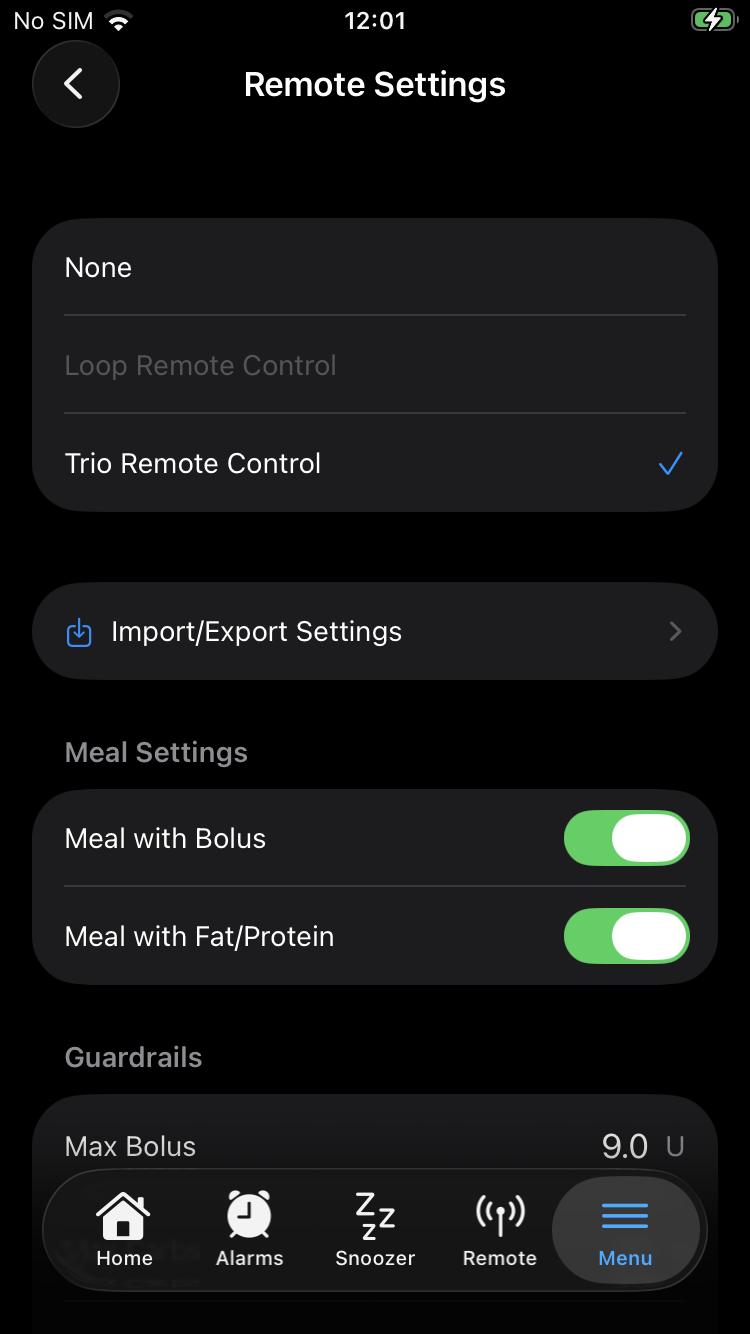
The Trio Remote Control option is not available
The Trio Remote Control option is only available in LoopFollow if you have already entered a Nightscout Site with a default profile recognized as a Trio profile. Review Troubleshooting for possible reasons for not seeing the option.
- Trio Remote Control option
- Remote control with LoopFollow includes adding remote carbs, enacting remote bolus, and starting and canceling Temp Targets and Overrides
- Continue with Configure LoopFollow Trio Remote Control to finish the configuration process
Configure LoopFollow Trio Remote Control
Meal Settings
The user can decide to enable or disable two features independently.
- Meal with Bolus
- When enabled, a bolus command can be sent at the same time as the meal entry
- Meal with Fat/Protein
- When enabled, the user is presented with a Protein and Fat row in addition to the Carbs and Bolus Amount rows
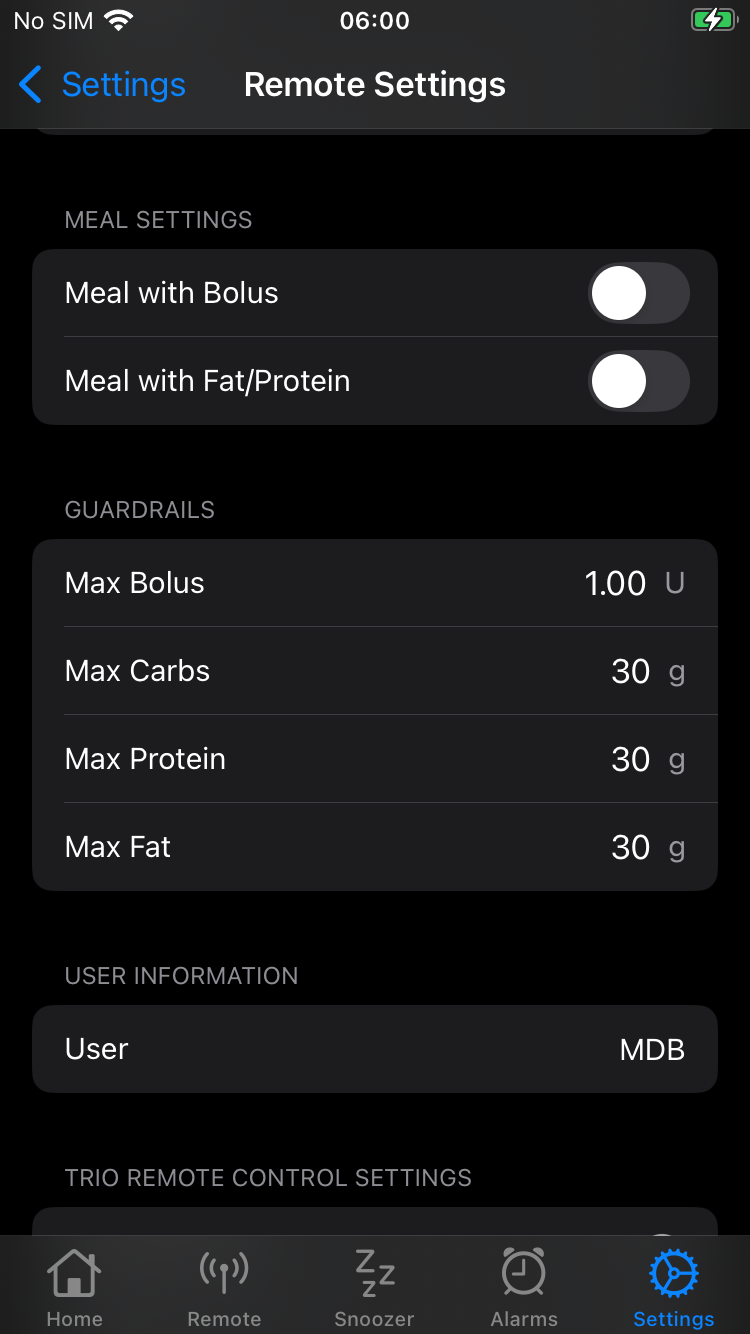
Refer to the graphic below which shows default settings for meal settings and guardrails rows. The user row is filled in.
Guardrails
The maximum allowed entries for Bolus, Carbs, Protein, and Fat are configured in the guardrails section. The default values are shown in the graphic in the Meal Settings section. Adjust this to what is appropriate for the individual.
These guardrails are for sending remote commands with LoopFollow. There are separate guardrails in the Trio app itself. Be sure the LoopFollow guardrails are at least as conservative as the Trio guardrails.
Do not exceed Trio Guardrails
Example:
- LoopFollow guardrail is 10 U bolus
- Trio guardrail is 8 U bolus
- Send remote bolus amount of 10 U from LoopFollow
- LoopFollow shows a success message, meaning the APNS request was successfully sent to the Trio phone
- The Trio phone rejects the request because it exceeds the guardrail
- A gray dot shows up on the LoopFollow screen, tapping it shows the message "Command rejected: bolus amount (10 units) exceeds the maximum allowed (8 units)"
User
The person using the LoopFollow app should enter the name they want to show up as having entered this entry.
- At the current time, this is not used by LoopFollow for Trio
Refer to the graphic in the Meal Settings section.
Credentials
Shared Secret
This is the unique shared secret that can be generated or entered into the Trio app in the Remote Control screen. The shared secret in Trio and LoopFollow must match to provide the ability to remotely send commands to this Trio app.
Please use a secure secret - the automatically generated secret is recommended.
APNS Credentials
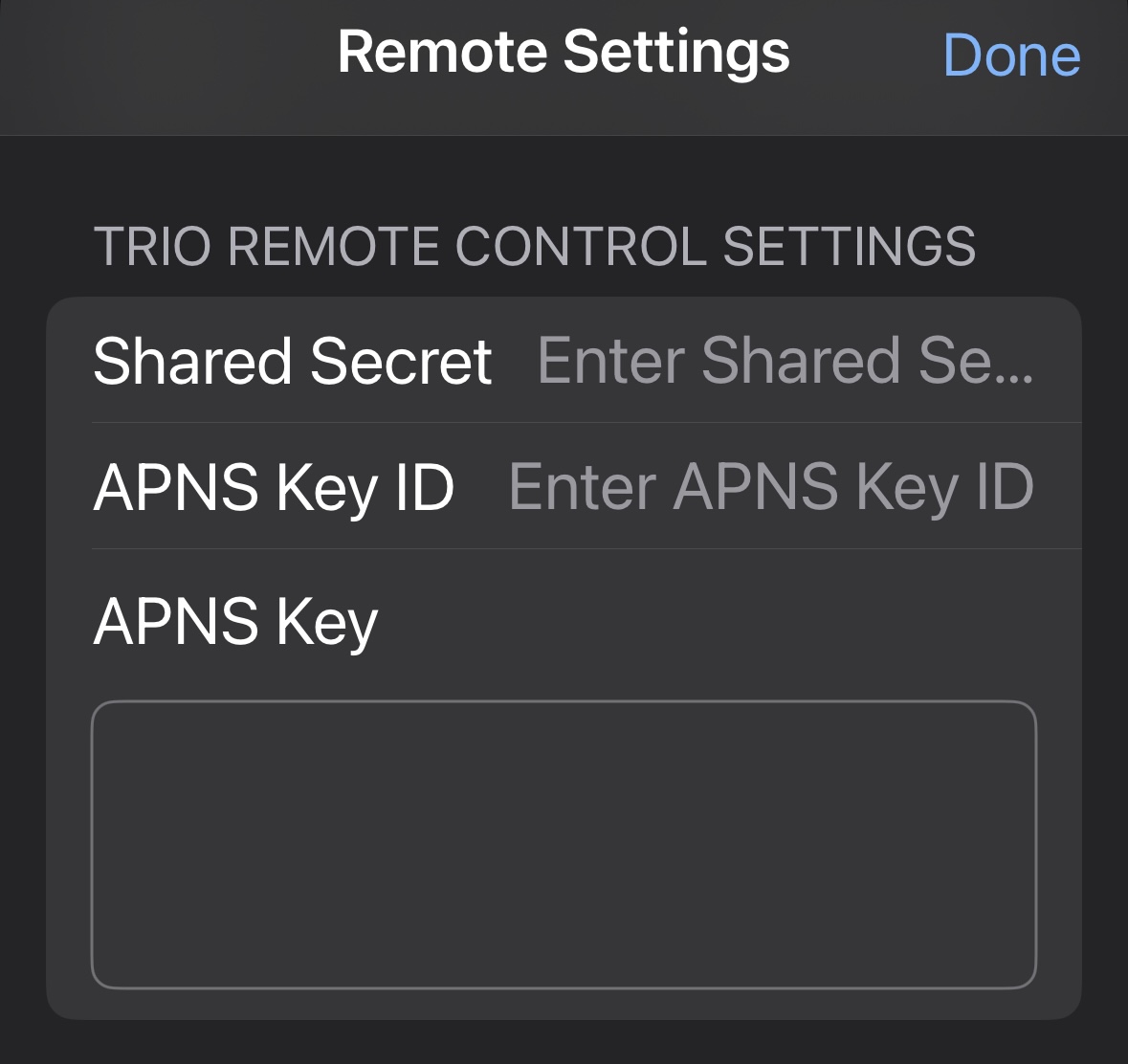
When you select Trio Remote Control as the Remote Type in the LoopFollow app, you must fill in the Shared Secret on the LoopFollow Settings, Remote screen and the APNS Key ID and APNS Key on the LoopFollow Settings, APN screen.
The graphics below are out of date. As of version 6.0.0, the APN entries are in their own setting location.
| Default Remote Settings | Configured Remote Settings |
|---|---|
 |
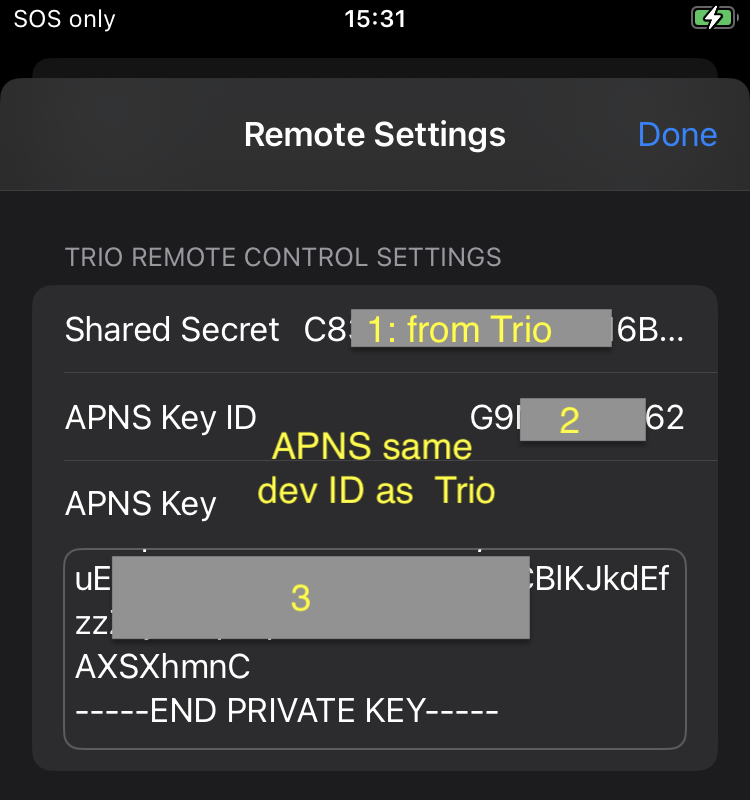 |
APNS Key ID
If you previously configured remote control with the Loop app, you already have an Apple Push Notification System (APNS) Key ID and Key. These were added to the config vars in your Nightscout site. See Existing APNS. The value of the LOOP_APNS_KEY_ID goes here. Be sure to read the Configure Nightscout for Trio (OpenAPS) section about steps to make Nightscout and LoopFollow work with Trio.
If you have never created an APNS (or have lost the credentials), follow the directions in New APNS and copy the APNS Key ID into LoopFollow and save the value in your Secrets Reference file.
When creating the APNS, you must be logged in as a developer. The developer ID for the APNS must be the same as the one used for creating your Trio app or remote control will not work.
APNS Key
If you previously configured remote control with the Loop app, you already have an Apple Push Notification System (APNS) Key ID and Key. These were added to the config vars in your Nightscout site. See Existing APNS. The value of the LOOP_APNS_KEY goes here.
If you have never created an APNS (or have lost the credentials), follow the directions in New APNS and copy the APNS Key into LoopFollow and save the value in your Secrets Reference file.
Debug / Info
This section indicates if Trio has uploaded required information to Nightscout.
The graphic below shows a properly configured LoopFollow when the Trio app was built using the Browser Build method.
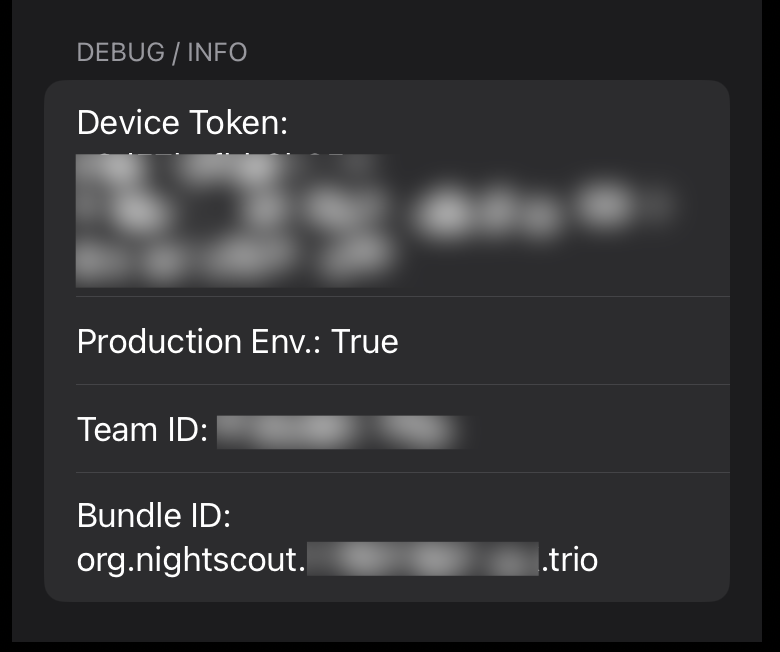
If you have empty rows in the Debug / Info screen, the most likely problem is the default profile is not coming from Trio. See Update Profile. If you took those steps and still have missing rows, return to Configure LoopFollow Trio Remote Control and try again.
Troubleshooting
This section covers known troubleshooting issues:
- Nightscout not displaying Trio data: Configure Nightscout for Trio (OpenAPS)
- Was able to select Trio Remote Control in LoopFollow but it is no longer working: Stop Nightscout access from other apps
- Cannot select Trio Remote Control in LoopFollow: Update Profile
Configure Nightscout for Trio (OpenAPS)
The Nightscout version must be 15.0.2 (or newer) to properly display the OpenAPS pill. Check your revision: Nightscout URL, Menu, scroll to bottom and examine the About section.
If you transitioned from the Loop app, you must make some modifications to Nightscout before you will be successful viewing your Trio data in your Nightscout site.
In Nightscout, you need to modify these config vars:
| Config Var | Loop |
Trio |
|---|---|---|
ENABLE |
loop |
openaps |
SHOW_PLUGINS |
loop |
openaps |
SHOW_FORECAST |
loop |
openaps |
Remember to restart the Nightscout server (restart dynos) after updating these variables.
Stop Nightscout uploads from other apps
If you were previously running the Loop app or the iAPS app:
- Remove Nightscout from Loop Services or iAPS services
- Add Nightscout as a Service to Trio
- You need the Nightscout URL and the API_SECRET
In addition to this step, you may need to force the profile (from Trio) to upload to Nightscout and overwrite the one stored as the default profile in Nightscout.
Update Profile
If you were previously running the Loop app or the iAPS app, Stop Nightscout upload from those apps and then force the profile to update.
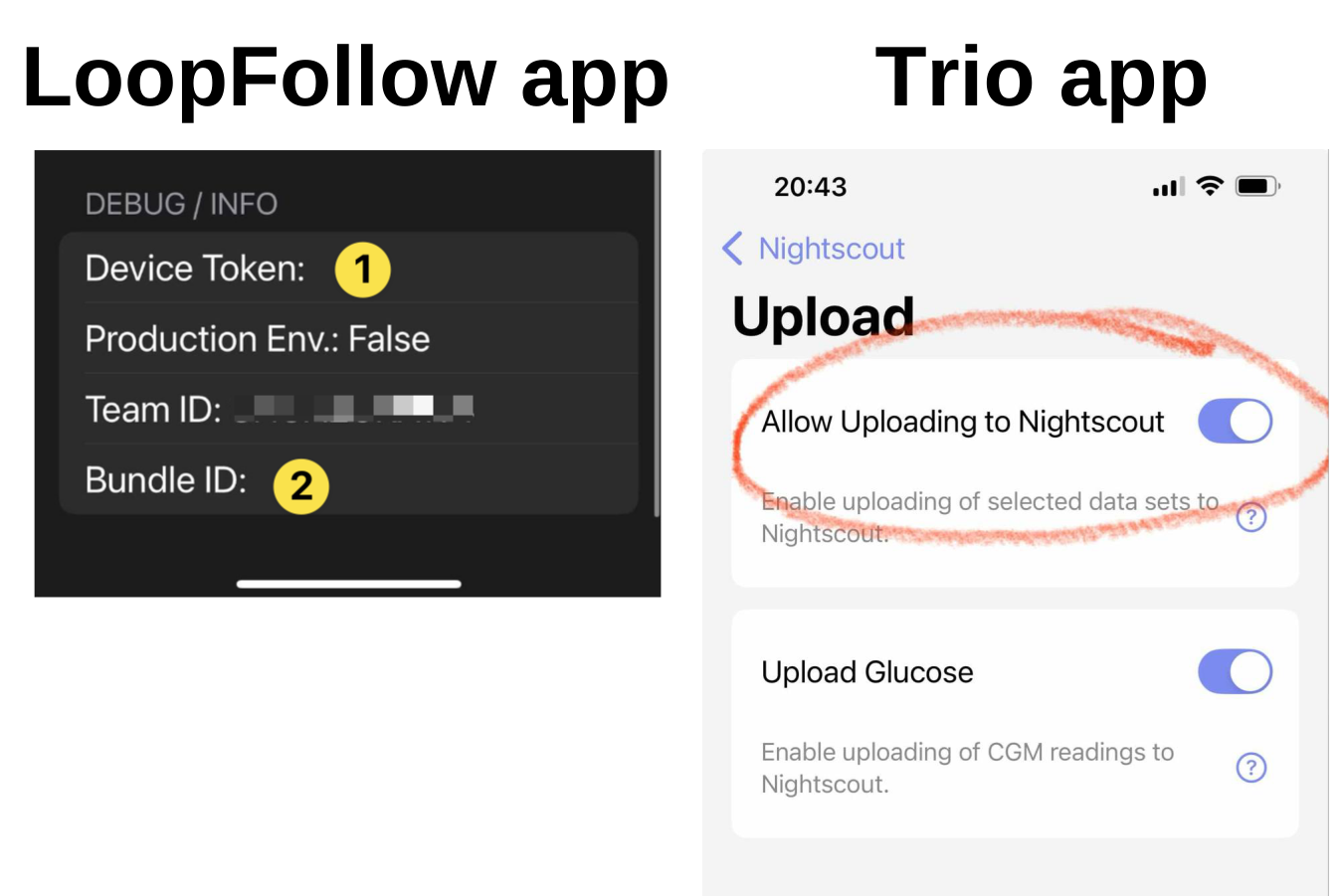
To force a profile to update to Nightscout, go to the Trio app and toggle Allow Uploading to Nightscout off (disable) and then enable it again.
Once the user has toggled "Allow Uploading to Nightscout", LoopFollow needs to be refreshed (pull down glucose value to refresh) or re-started in order to fetch the correct information. LoopFollow will refresh eventually, but most users are impatient.
If the Debug Info in LoopFollow is missing a Device Token or a Bundle ID, as shown on the left side of the graphic, you need to make sure any previous AID app (Loop, iAPS) is no longer uploading to Nightscout and force the profile to update.
Trio Remote Control Stops Working
Other signatures that you need to force the update are shown in the graphics below - for both these instances, Trio Remote Control (TRC) was working with LoopFollow and then stopped working:
| TRC Option Not Allowed | TRC Error |
|---|---|
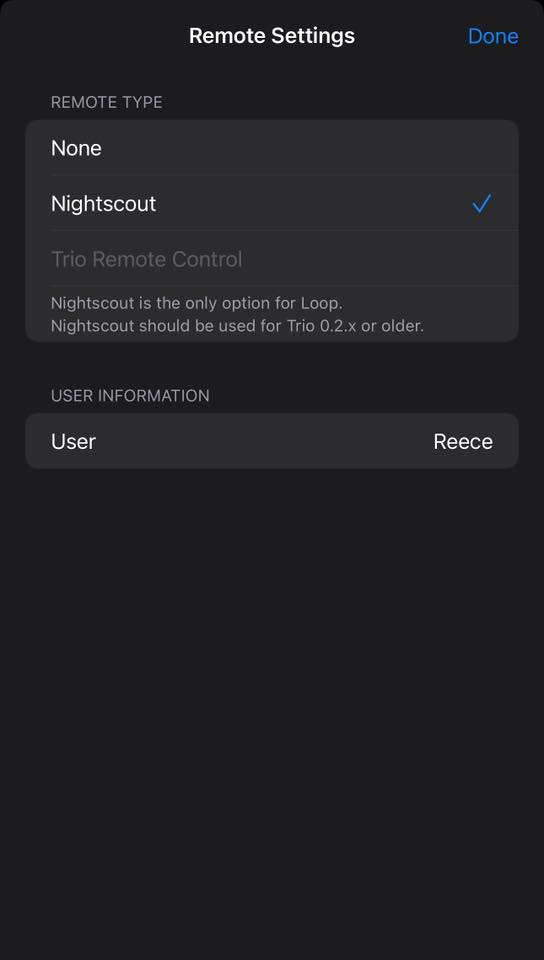 |
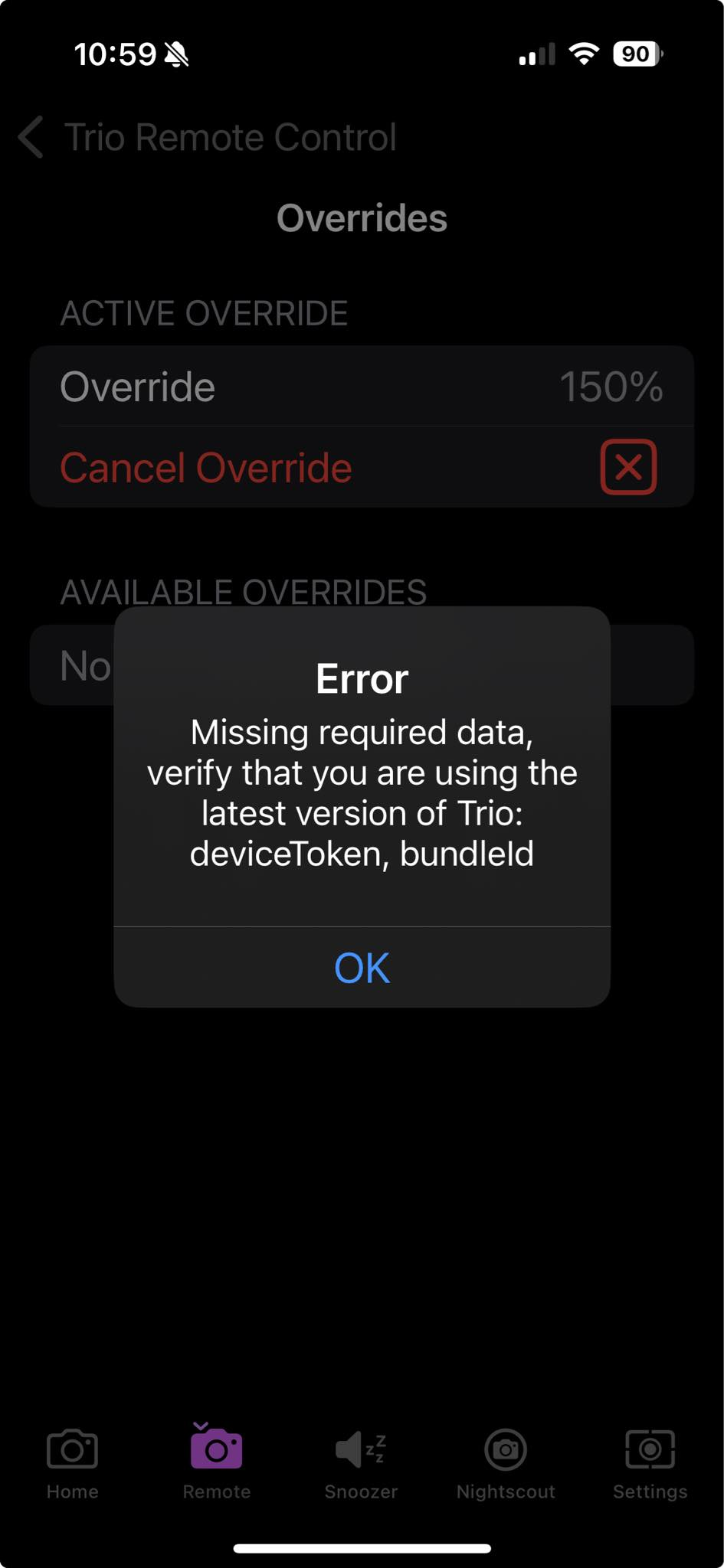 |